Script supervisor workflow
/dashboard/production/script-supervisor. Script Sup's dedicated work surface for capturing continuity, takes, and director picks. The continuity notes + takes you log here flow downstream to the editor log + the daily camera report PDFs.
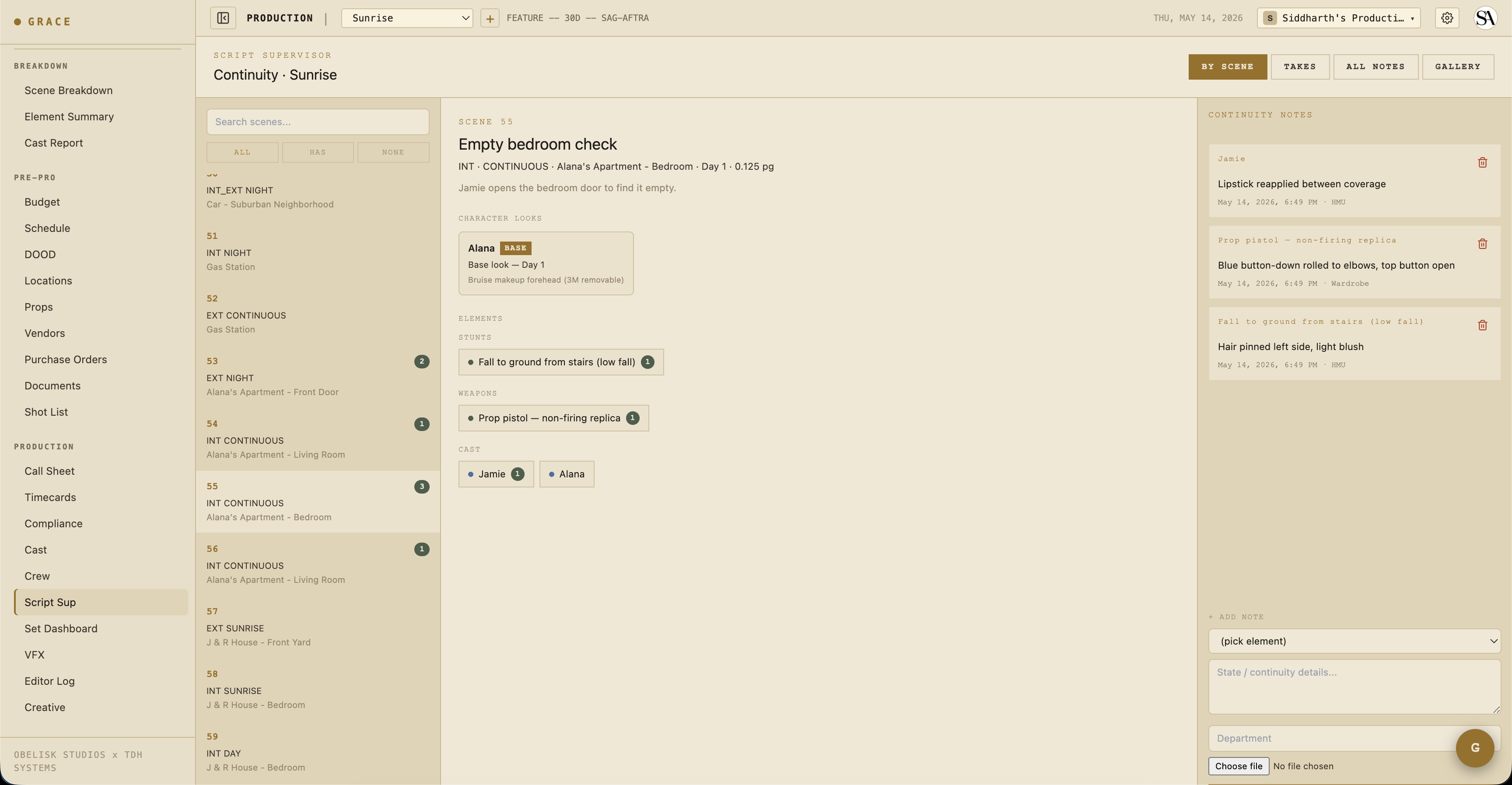
Layout
Three panes on desktop. On mobile, you toggle between them via tabs:
- Left - Scenes list for today (or whichever shoot day you're on). Includes any non-scene strips (lunch, moves) for context.
- Middle - Shots for the selected scene. Each shot row collapses to show its takes.
- Right - Take detail + continuity panel for the selected shot.
Logging a take
When a take rolls:
- Tap the active shot.
- Tap + NEW TAKE (or the keyboard shortcut if you have one wired).
- Set the take's
status:- Circle (the keeper) - green dot.
- Hold - might use. Default for tentative coverage.
- NG - no good. Director can override later via Editor Log picks.
- False start - never rolled / aborted.
- Capture the camera report fields:
- Camera - A / B / C / etc.
- Camera body - model (ALEXA Mini LF, RED Komodo, etc.).
- Lens - focal length.
- T-stop - exposure.
- Filter - ND / pol / diff / etc.
- Focus distance - feet/meters.
- Duration - seconds.
- Notes - what was different. Whose line was muffed, whose timing was off, what the prop did that it shouldn't.
Take number auto-increments per shot. Re-numbering is intentional and locked (UNIQUE constraint on shotId + takeNumber).
Continuity notes
When you tap an element row from the scene side, a continuity drawer opens. Drop in a state note:
- HMU - "Hair pinned left, light blush"
- Wardrobe - "Blue button-down rolled to elbow, top button open"
- Set Dec - "Coffee mug 3/4 full, handle camera right"
- Camera - "Practical lamp ON, lampshade tilted 10° clockwise"
Each note carries:
- Element ID - what it's about.
- Scene ID - where it was captured.
- Shot IDs - optional array of shots the note applies to (default empty = all shots in the scene).
- State - your freeform text.
- Captured by dept - which department (HMU / Wardrobe / Set Dec / Camera / Sound).
- Captured by user ID + timestamp - provenance.
Notes for the same element accumulate over time. When you tap that element on a future scene, you see the stack of previous notes for continuity reference - no need to flip through paper.
Director picks
After scene coverage is done, the director may rank specific takes as "selects." From the Set Dashboard or Editor Log:
- Find the shot.
- From the shot's take list, tap a circled take.
- Mark it as the primary pick (orderIndex 0) or rank it (orderIndex 1, 2, ... for secondary picks).
Picks land in the shot_selects table and flow through to the editor log + the EDL / FCPXML / CSV exports.
Mobile
Script Sup uses an mobilePane state ('list'/'detail'/'notes'/'data') to swap which pane is visible. The dashboard tab in TopBar (BREAKDOWN / SCHEDULE / etc.) resets mobilePane to 'list' on tab change so you start from a known state.
Creative refs
/dashboard/production/creative shows reference assets tagged by scene.
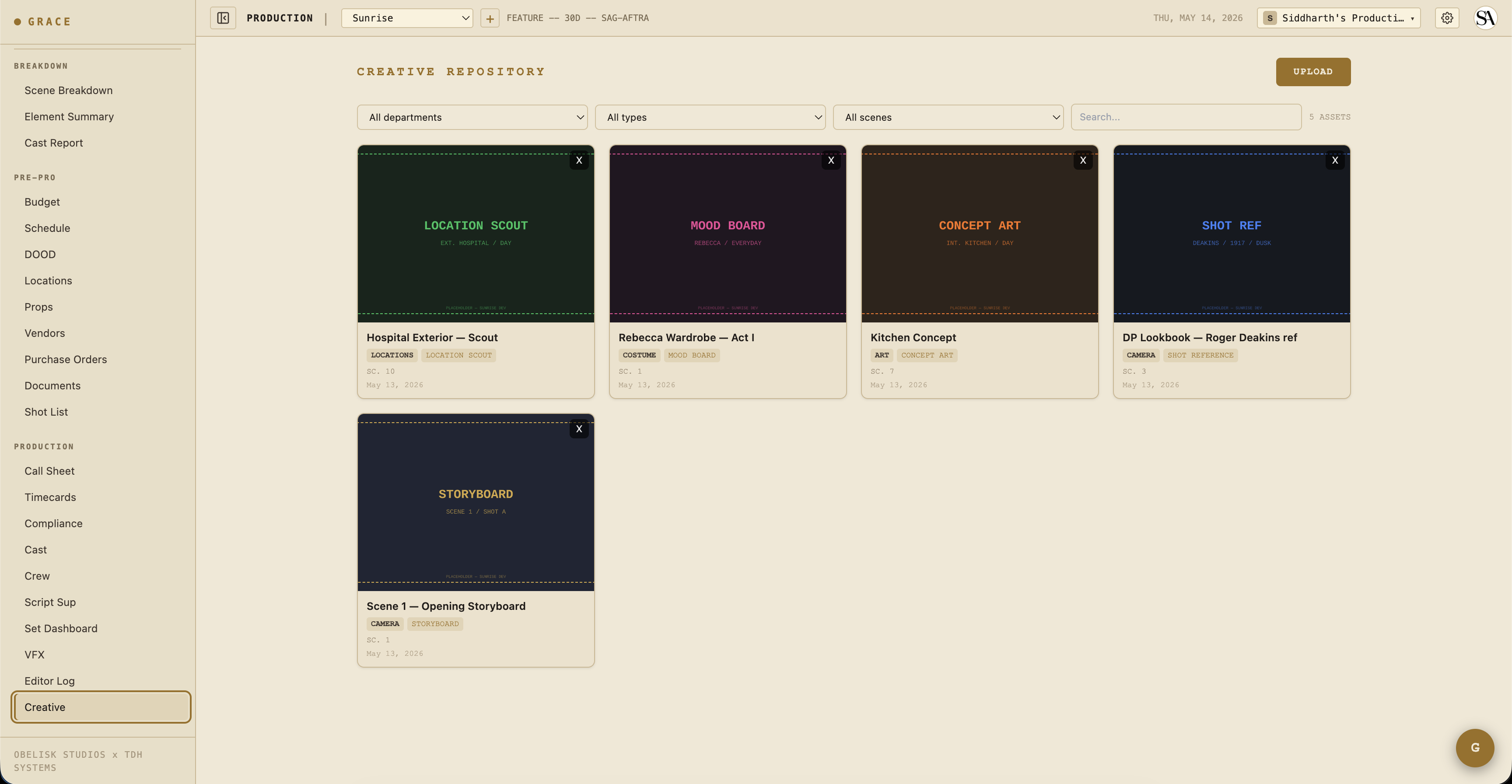
From the script sup detail pane, you'll see a CREATIVE REFS strip showing any assets tagged to the selected scene - mood boards, prevs, frame references from the director.
What flows downstream
Everything you log here drives:
- Editor log - Coverage → Editor Log is the circled-takes view by default, with an option to show all takes.
- Camera report PDF - exports a daily camera report from your take data.
- Script supervisor report PDF - exports a continuity-focused report.
- Editor log exports - EDL / FCPXML / CSV / PDF - see Editor log.
Next
- Editor log - where your circled takes + picks show up.
- VFX flagging + turnover - if today had VFX shots, the requirements should be tracked here too.